

Nothing ruins a gaming session faster than lag or choppy visuals. Do you agree? Imagine you are aiming perfectly and are ready to win, but then suddenly the game freezes for a second or two. That’s where FPS comes in. FPS plays a huge role in how smooth and fun your PC games feel like. And you don’t always need a new PC to fix FPS issues. With a few simple changes, you can make your games run smoother and feel way better. In this guide, we’ll break everything down in very easy words and discuss how to improve FPS in PC Games.
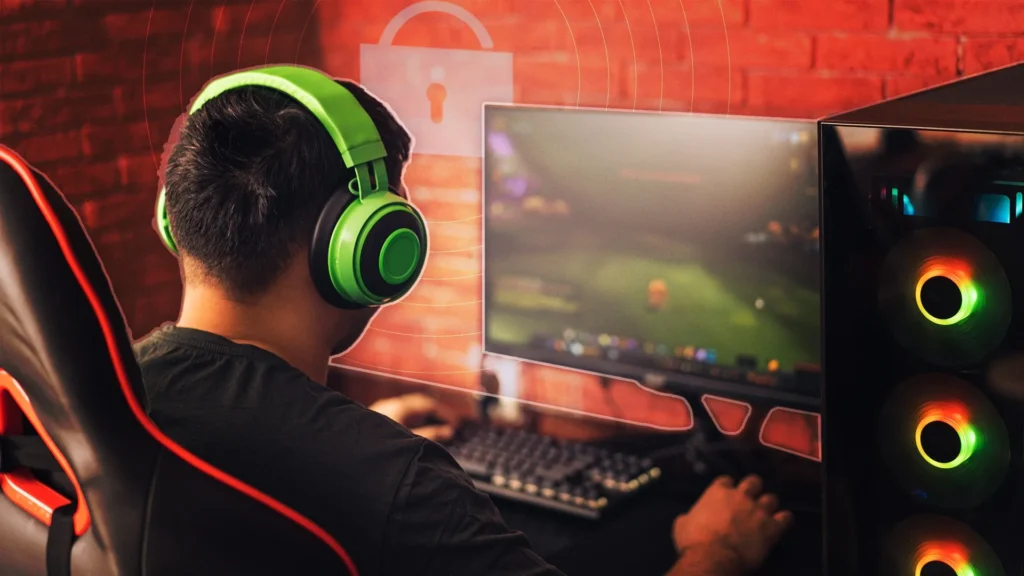
What Is FPS?
FPS is the measurement of Frames Per Second. A single frame represents one complete visual display of your screen and the FPS measurement shows the number of images that your PC displays each second during your gaming session. Higher FPS results in smoother movement and faster response plus better control of the game. Whereas, lower FPS results in visual delays and lag and creates unsteady images, slower response, and crashes in some cases.
- 30 FPS = okay, but not very smooth
- 60 FPS = smooth and enjoyable
- 120 FPS or more = super smooth, mostly for competitive gamers
Why Is FPS Important in Games?
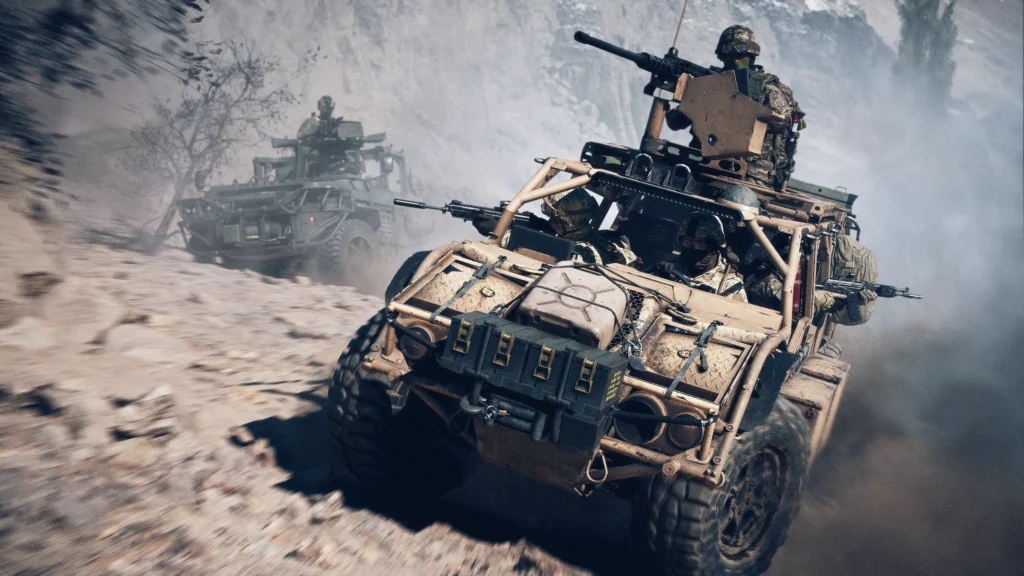
FPS matters a lot, especially if you want a smooth and fun gaming experience. If you are playing fast-paced games like Battlefield 6, Borderlands 4, or Fallout 76, then your FPS matters the most.
Here’s why FPS is important:
- Smoother gameplay: The game displays movement in a smooth way because it operates at higher FPS rates
- Better reaction time: You see enemies faster and react quicker
- Less lag and stutter: The game plays without any sudden freezes or periods of decreased performance
- More control: The player experiences improved accuracy for both aiming and movement
- Competitive advantage: Higher FPS helps players to improve their shooting skills and performance in online games
How to Improve FPS
- Lower In-Game Graphics Settings: Players can lower their graphics settings because high settings create better visuals but decrease their operational performance. The game will perform better when players decrease shadow, texture and effect settings to their lowest values.
- Reduce Screen Resolution: Gamers should reduce screen resolution as lower resolution needs less power and will function smoother.
- Update Graphics Drivers: The process of updating graphics drivers will solve performance issues which result from outdated drivers and updated GPU drivers will enhance gaming performance.
- Close Background Applications: You should shut down all browsers, launchers and any other applications that you do not need before starting your gaming session.
- Enable Windows Game Mode: Game Mode allocates system resources exclusively to games while it prevents background updates from occurring during gameplay.
- Turn Off V-Sync: V-Sync restricts frame rate output which results in delayed user input. Gamers can achieve instant frame rate boost when they disable this feature.
- Play in Fullscreen Mode: The PC demonstrates its best performance when users select Fullscreen mode instead of using windowed or borderless display modes.
- Check PC Temperature: PC overheating causes lower frame rate performance. Optimal PC temperature maintenance requires users to perform fan cleaning and proper airflow management.
- Upgrade Hardware if Needed: If your hardware is outdated, you might need to update it to avoid lag. Try getting a modern gaming PC or installing necessary updates in the current one.
- Set a Stable FPS Limit: Establishing an FPS limit of 60 frames per second will make gaming experience smoother for players.
Summary
Improving FPS in PC games doesn’t have to be hard or expensive. When gamers reduce their graphical settings and shut down unused programs and install driver updates, they can expect substantial performance improvements. FPS performance depends on three main factors which include visual smoothness, player control and gaming enjoyment. Every type of player experience from casual to competitive benefits from enhanced FPS performance which makes games more enjoyable. So, this is how to improve FPS in PC Games.
For more gaming news, guides, tips, codes, and more, check out Driffle Blog.


