Apple Wallet is a handy and secure app on your iPhone or Apple Watch that keeps all your important cards and passes in one place. From gift cards to credit cards and much more, Apple Wallet lets you carry them digitally and use them easily without needing physical copies. Let’s learn how to add gift cards and other useful items to Apple Wallet so you can enjoy quick, contactless payments and convenient access wherever you go. Let’s dive in.

What is Apple Wallet?
Apple Wallet is a secure app on Apple devices that holds digital versions of your cards and passes, such as gift cards, credit and debit cards, transit passes, event tickets, loyalty cards, and keys. It allows you to make payments with Apple Pay simply through your phone. If you use this, then you don’t necessarily need to carry physical cards. It will easily get you through airport security or a hotel door. Keeping all your cards in one place for convenient and contactless use.
How to Add Gift Card to Apple Wallet?
Follow these simple steps to add a gift card to Apple Wallet:
- Open the app or email where you received the gift card.
- Look for an ‘Add to Apple Wallet’ button or link on the gift card details.
- Tap the ‘Add to Apple Wallet’ button.
- The gift card will open in Apple Wallet preview.
- Then tap Add or Add to Wallet.
- If the gift card does not have a direct button, check if the app supports Apple Wallet and add it within the app.
- You can also scan the barcode or QR code of the physical gift card using the Wallet app or camera and follow prompts to add it.
- Once added, you can view and use your gift card directly from Apple Wallet.
Note: Not all gift cards support Apple Wallet, so ensure the card or app is compatible. Moreover, some store apps let you manage gift cards within their own apps with an option to add to Wallet.
Things You Can Add to Apple Wallet
Apple Wallet lets you add many useful items in one place. Here is a list of things that you can add:
- Gift cards for various stores.
- Credit and debit cards for Apple Pay payments.
- Transit cards for public transportation.
- Boarding passes for flights.
- Tickets for movies, concerts, and events.
- Coupons and offers for shopping.
- Rewards and loyalty cards from stores.
- Identity cards and driver’s licenses (where supported).
- Keys for hotels, cars, and smart locks.
- Order tracking details for online purchases.
- Digital certificates and passes.
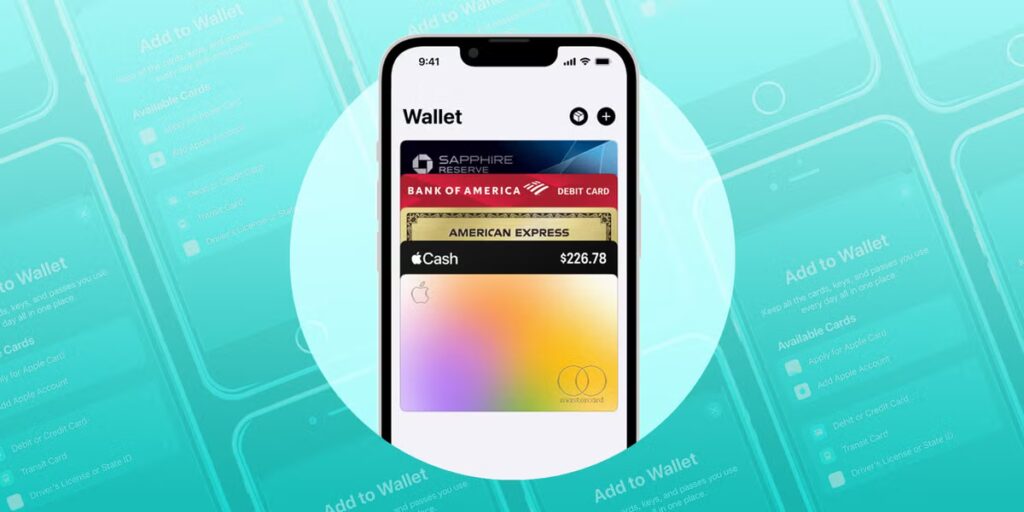
All these can be securely stored and used conveniently right from your iPhone or Apple Watch, making payments, showing tickets, or scanning passes faster and easier.
Key features of Apple Wallet
- Secure and convenient: It stores your sensitive information securely and provides easy access to your passes and gift cards.
- Payment: You can add credit and debit cards to use with Apple Pay for purchases in stores, online, and in apps.
- Tickets and passes: You can also store boarding passes, train tickets, movie tickets, and event tickets for easy entry and use.
- Keys: Add digital keys for your home, hotel room, and car to unlock them with your device.
- Identification: In supported locations, you can securely present your ID to verify your identity.
- Loyalty and rewards: Add customer and loyalty cards to your Wallet to ensure you get all your rewards and benefits.
- Apple Account: The app can also show your Apple Account balance and gift cards.
Apple and iTunes Gift Card
Driffle offers Apple gift cards and iTunes Gift Cards, which are very useful for any Apple user. With these gift cards, you can buy a wide range of things, such as apps and games from the App Store, music, movies, and TV shows from iTunes and Apple TV, books from Apple Books, and subscriptions like Apple Music, Apple Arcade, and Apple TV+.

You can also use them to pay for iCloud storage or buy physical Apple products like iPhone, Mac, iPad, and more from the Apple Store. These cards make it easy to enjoy all Apple services and products without needing a credit card, giving you flexible and secure spending options. Moreover, you can also add these gift cards to your Apple Wallet and use them whenever you want.
Things To Keep in Mind While Adding Cards to Apple Wallet
Here are important things to keep in mind when adding gift cards or other items to Apple Wallet:
- Make sure your device is compatible and updated with the latest iOS or watchOS version.
- Set up a passcode, Face ID, or Touch ID for security before adding cards.
- You can add cards by scanning them with your device’s camera or by entering details manually.
- Some cards require verification from your bank or card issuer, like a code sent via text or email.
- Always buy gift cards from trusted sellers like Driffle, offering better prices than other storefronts.
- Your personal and device information may be used during card verification (like device model, location if enabled).
- Only add gift cards supported by Apple Wallet and your local region.
- You can add previously used cards easily without re-entering all details.
- Always keep an eye on the expiration date of your gift cards that you add to Apple Wallet.
- Keep your Apple ID and device secure, as Wallet stores sensitive payment and ID details.
This helps keep your Apple Wallet secure and ensures gift cards and passes work smoothly when using Apple Wallet.
Summary
So these were the simple steps, and now you know how to add gift cards to the Apple Wallet. And all the important things you should know while doing the same. It is a convenient and secure way to carry and use many types of cards and passes digitally on your Apple devices. Making daily transactions and access much easier and faster than carrying physical cards.

Buy your desired gift cards at the best prices from Driffle. And for more gaming guides, tips, tricks, and more, check out Driffle Blog.